Have you ever wondered how you can easily capture and share information from your phone screen? If you’re curious about how to make the most of your smartphone’s features, you’re in the right place.
Smart Capture is a tool that could revolutionize the way you interact with your device. It’s designed to make taking and sharing screenshots incredibly easy and efficient. Imagine having the power to effortlessly save and share what you see on your screen with just a few taps.
You’ll discover how this feature can save you time, boost your productivity, and make your digital life smoother. Dive into this article to uncover the secrets of Smart Capture and unlock a new level of convenience on your phone.

Credit: www.online-tech-tips.com
Smart Capture Features
Smart Capture on your phone simplifies taking screenshots. With a swipe, capture the entire screen or scrollable content. This feature enhances productivity by allowing easy sharing and saving of information quickly.
Smart Capture on your phone offers many useful features. It enhances how you take and use screenshots. Let’s dive into the key features that make Smart Capture a handy tool.Enhanced Screenshot Capabilities
Smart Capture lets you take long screenshots. Capture entire web pages or chat conversations easily. No need to take multiple screenshots. Just one swipe can do it all. This feature saves time and effort.Annotation And Editing Tools
Editing screenshots is simple with Smart Capture. Add notes, arrows, or highlight sections. These tools help explain details clearly. You can crop images or adjust colors too. Make your screenshots more informative.Sharing Options
Sharing screenshots is easy with Smart Capture. Share directly to social media or send via email. You can also share through messaging apps. Options are plenty, making it quick to share with others.How To Use Smart Capture
Smart Capture is a handy tool on your phone. It helps you take screenshots quickly. You can easily edit and share them too. This guide will show you how to use Smart Capture effectively.
Activating Smart Capture
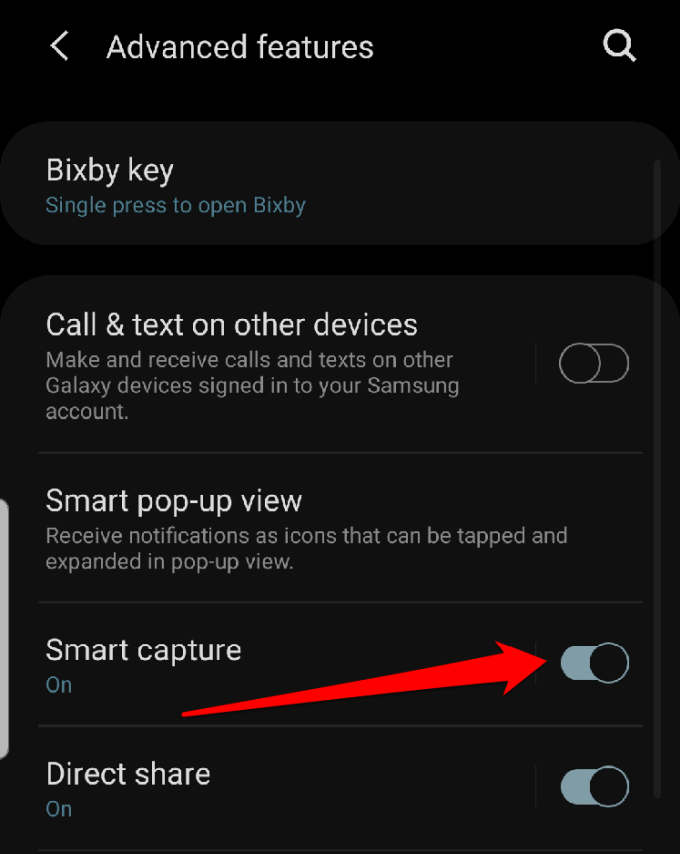
First, ensure Smart Capture is turned on. Go to your phone’s settings. Find the ‘Advanced Features’ section. Tap on it. Look for ‘Smart Capture’ and switch it on. Now, your phone is ready to capture screenshots.
Taking Screenshots
Taking a screenshot is simple. Press the volume down and power buttons together. Hold them for a second. Your screen will flash, confirming the screenshot. You can also swipe your palm across the screen. This gesture captures the screen instantly.
Editing Screenshots
After capturing, you can edit your screenshot. Tap on the preview at the bottom. You will see editing options. Crop to focus on specific parts. Draw or write on the image for clarity. Save your changes before sharing.
Benefits Of Smart Capture
Smart Capture on phones simplifies taking screenshots by allowing easy editing and sharing. Users save time with automatic scrolling capture for lengthy web pages or apps. Enhanced functionality makes preserving important information more efficient and accessible.
Smart Capture is a feature on many smartphones that enhances the way you interact with your device. It offers a range of benefits that can boost your daily activities. From improving productivity to enhancing user experience, Smart Capture can be a game-changer in your digital routine.Improved Productivity
Imagine capturing important information without the hassle of switching apps. With Smart Capture, you can easily take screenshots and annotate them. This means you can save time and focus on what truly matters. Whether you’re at work or managing personal tasks, this feature streamlines your workflow.Streamlined Communication
Sharing information quickly and accurately is crucial. Smart Capture allows you to instantly share screenshots with annotations. This makes it easy to convey your message clearly. Have you ever struggled to explain something over text? With Smart Capture, a picture is worth a thousand words.Enhanced User Experience
Smart Capture isn’t just about functionality; it’s about making your phone easier and more enjoyable to use. By simplifying the way you interact with information, it enhances the overall user experience. Every tap and swipe is designed to be intuitive and efficient. How much time could you save with a more responsive phone?
Credit: www.pocket-lint.com
Common Issues And Troubleshooting
Encountering issues with Smart Capture on your phone can be frustrating, especially when you want to quickly capture, edit, or share a screenshot. While this feature is designed to make your life easier, it doesn’t always work seamlessly. Let’s dive into some common problems and how you can troubleshoot them to keep things running smoothly.
Fixing Capture Problems
One of the most frequent issues users face is Smart Capture not activating when attempting to take a screenshot. Ensure that Smart Capture is enabled in your phone settings. Navigate to your device’s settings and check under ‘Advanced Features’ or ‘Motions and Gestures’.
If it’s already enabled, try restarting your device. Often, a simple reboot can resolve glitches that might be hindering your phone’s functionality. If the problem persists, consider updating your phone software, as outdated systems can cause compatibility issues with features like Smart Capture.
Resolving Editing Errors
Editing screenshots should be straightforward, but sometimes the tools might not respond as expected. Ensure your phone has sufficient memory. A lack of storage can slow down or freeze editing features.
Check if there’s an update available for your editing app. Developers frequently release updates to improve functionality and fix bugs. If editing continues to be problematic, try using a different app to see if the issue lies with the app or the phone itself.
Addressing Sharing Issues
Sharing your screenshots should be a breeze, but network issues can create hurdles. First, confirm that your internet connection is stable. A weak connection can delay or fail the sharing process.
Review the permissions for the app you’re using to share screenshots. Apps require specific permissions to access your gallery and other apps. Adjust these settings in your phone’s app management section.
What do you do when tech features like Smart Capture don’t work as intended? Share your insights and solutions in the comments below! Your experience could help others facing similar challenges.
Smart Capture In Different Devices
Smart Capture is a handy feature on many smartphones today. It lets users capture and share screen content easily. Different devices offer unique features for Smart Capture. Let’s explore how Android and iOS handle Smart Capture.
Android Vs Ios Features
Android phones often include advanced Smart Capture features. Users can capture scrolling screens or specific areas. Many Android devices also offer editing tools right after capturing. iOS, on the other hand, provides a simple approach. Users can take screenshots and edit them using built-in tools. While Android focuses on functionality, iOS emphasizes simplicity and ease.
Device Compatibility
Most modern smartphones support Smart Capture features. On Android, compatibility varies by manufacturer. Samsung, Huawei, and Xiaomi have their own Smart Capture tools. iOS devices like iPhones and iPads have a consistent feature set. Older devices may lack some advanced capabilities. It’s essential to check your device’s specifications to know the features available.
Future Updates
Smart Capture technology continues to evolve. Developers aim to enhance user experience with each update. Future updates may introduce more intuitive editing options. There might also be improvements in sharing capabilities. Keeping your device updated ensures access to the latest features. Stay tuned for upcoming advancements in Smart Capture technology.

Credit: m.youtube.com
Frequently Asked Questions
What Is Smart Capture On Android?
Smart Capture on Android lets users capture and edit screenshots easily. It offers quick tools for cropping, drawing, and sharing images. The feature enhances productivity by simplifying the screenshot process. Users can access Smart Capture through the device’s settings or directly after taking a screenshot.
Can I Disable Samsung Capture?
Yes, you can disable Samsung Capture. Go to Settings, select Advanced Features, then Screenshots and Screen Recorder, and toggle off Samsung Capture.
What Does “capture” Mean On My Phone?
On your phone, “capture” typically refers to taking a photo, recording video, or capturing a screenshot. It involves saving visual content using your phone’s camera or screen. The feature is easily accessible and allows you to store important moments or information directly on your device.
What Is Smartcapture?
SmartCapture is a Salesforce Marketing Cloud tool. It enables users to create forms for collecting customer data. This helps in personalizing campaigns and improving engagement. The tool is user-friendly and requires no coding skills. Businesses can easily capture leads and build targeted marketing strategies.
Conclusion
Smart Capture makes taking screenshots easy and quick. It helps you save important information on your phone. You can capture long pages or specific parts. With just a few taps, you get what you need. This tool can assist in saving memories or important data.
Explore its settings for better use. Experiment with different features. It’s a handy tool for everyday tasks. Enjoy the convenience it offers. Smart Capture truly simplifies your digital life.