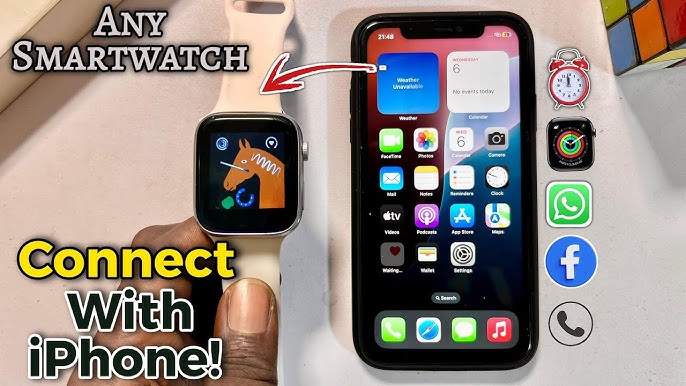
Are you ready to unlock the full potential of your smartwatch with your iPhone? Connecting these two devices can open up a world of convenience right on your wrist.
But if you’re unsure where to start or worried about complicated steps, you’re in the right place. This guide will walk you through every simple step to get your smartwatch paired perfectly with your iPhone. By the end, you’ll have seamless access to notifications, fitness tracking, and more—without the hassle.
Keep reading to make your tech work smarter for you!

Credit: www.youtube.com
Choose The Right Smartwatch
Choosing the right smartwatch is key to a smooth connection with your iPhone. Not all smartwatches work the same with Apple devices. Knowing which models fit best can save time and avoid frustration. Consider your daily needs and how you plan to use the watch.
Check Compatibility With Iphone
Not every smartwatch pairs well with an iPhone. Apple Watch is designed specifically for iPhones, ensuring full compatibility. Other brands may offer limited features or require extra apps. Look for watches that support iOS and have good user reviews from iPhone users.
Important factors include:
- iOS version support
- Bluetooth connection stability
- App availability on the App Store
- Notifications and feature syncing
Popular Smartwatch Brands
Some smartwatches stand out for their iPhone compatibility and features. Apple Watch is the most seamless choice for iPhone users. Other brands offer diverse styles and prices but may limit some functions.
| Brand | Compatibility | Key Features |
|---|---|---|
| Apple Watch | Full iOS support | Health tracking, calls, Siri, apps |
| Fitbit | Good iOS app | Fitness tracking, notifications |
| Garmin | Compatible with iOS | Sports tracking, battery life |
| Samsung Galaxy Watch | Limited iOS features | Health monitoring, style |
Choose a brand that fits your lifestyle and budget. Check online reviews to see how well the watch works with iPhones. This ensures a better experience connecting and using your smartwatch.
Prepare Your Iphone
Preparing your iPhone is essential before connecting it to your smartwatch. This step ensures smooth pairing and better device performance. Proper preparation also helps avoid common connection issues.
Update Ios To Latest Version
Check your iPhone’s software version to ensure it runs the latest iOS. Updated software improves compatibility with new devices. It also fixes bugs that might cause connection problems.
Go to Settings > General > Software Update. Download and install any available updates. Restart your iPhone after updating to apply changes properly.
Enable Bluetooth And Wi-fi
Bluetooth is necessary for your iPhone to communicate with the smartwatch. Wi-Fi helps with syncing apps and data faster. Both should be turned on before pairing.
- Open Settings on your iPhone.
- Tap Bluetooth and switch it on.
- Go back to Settings and tap Wi-Fi.
- Turn on Wi-Fi and connect to a network.
Keeping Bluetooth and Wi-Fi active ensures a stable and quick connection.
Charge Your Smartwatch
Charging your smartwatch is the first step to keep it ready for use. A fully charged watch ensures smooth connection with your iPhone. Without enough power, syncing and other features may not work well. Follow simple tips to charge your smartwatch safely and effectively.
Ensure Sufficient Battery
Check the battery level on your smartwatch before starting the connection process. Most smartwatches show battery percentage on the screen or in settings. Avoid connecting if the battery is below 20%. Charging the watch first helps prevent interruptions during pairing.
Place On Charger Correctly
Use the charger that comes with your smartwatch. Align the charging pins or magnets carefully to the watch’s back. A loose connection can stop charging or cause slow power flow. Keep the watch flat on the charger for stable contact. Wait until the battery indicator shows full before disconnecting.
Download The Smartwatch App
Downloading the smartwatch app is the first crucial step to connect your smartwatch to your iPhone. This app acts as the bridge that links both devices, allowing you to customize settings, receive notifications, and track your health data seamlessly. Without the app, your smartwatch won’t reach its full potential.
Find App In App Store
Open the App Store on your iPhone and use the search bar to type the name of your smartwatch brand or model. Most popular brands like Apple Watch, Fitbit, Garmin, and Samsung have dedicated apps available for free. Make sure you select the official app by checking the developer’s name and reading the user reviews.
Have you ever downloaded the wrong app and wasted time? Taking a moment here can save you frustration later. Also, double-check if your smartwatch requires a companion app or works through the Apple Health app alone.
Install And Open The App
Once you find the right app, tap the download or get button to install it on your iPhone. The process usually takes just a few seconds depending on your internet speed. After installation, open the app immediately to start the setup process.
The app will guide you through pairing your smartwatch with your iPhone, often asking for permissions to access notifications, location, and health data. This is your chance to customize what information your smartwatch will share with your phone. Have you noticed how much control you get just from this app? It’s like setting the rules for your own tech buddy.
Pairing The Smartwatch
Pairing your smartwatch with your iPhone is the key step to start using its features. This process connects both devices via Bluetooth. It allows data to sync smoothly and notifications to appear on your watch.
Follow simple steps to make sure the connection is stable. The watch and phone will communicate directly after pairing. This makes tracking your fitness, receiving calls, and checking messages easy.
Turn On The Smartwatch
Press and hold the power button on your smartwatch. Wait until the screen lights up. Some watches show a logo or welcome message. Make sure the battery is charged before starting.
Follow On-screen Instructions
The smartwatch will show setup steps on its screen. Choose your language and region first. The watch may ask to enable Bluetooth. Agree to the terms and conditions to continue.
Your iPhone should display a pop-up asking to connect. Tap “Pair” or “Connect” to move forward. The watch and phone exchange data to identify each other.
Enter Pairing Code If Needed
Some smartwatches show a number code on their screen. Check if this code matches the one on your iPhone. Enter the code on your iPhone if asked. This step confirms the devices belong together.
Once paired, your watch will sync with your iPhone. You can start using apps, notifications, and health tracking features.

Credit: www.youtube.com
Customize Settings
Customizing your smartwatch settings makes your experience more personal and useful. It lets you control what alerts you get, how your health data syncs, and how your watch looks. Adjusting these settings helps your smartwatch work just the way you want.
Set Notifications Preferences
Choose which notifications appear on your smartwatch. You can allow alerts from calls, messages, or apps. Turn off alerts that distract you. This keeps your watch helpful without being noisy.
- Open the Watch app on your iPhone.
- Select Notifications.
- Pick apps to show alerts on your watch.
- Toggle off apps you don’t want notifications from.
Sync Health And Fitness Data
Keep your health data updated between your watch and iPhone. This helps track your steps, heart rate, and workouts. Make sure your watch and phone share data smoothly.
- Go to the Health app on your iPhone.
- Enable data sharing for your smartwatch.
- Check that Bluetooth is on for both devices.
- Open the Watch app and sync fitness information.
Adjust Watch Faces
Change how your watch face looks to fit your style and needs. Pick from many designs and add useful widgets. Customize colors and complications for quick info.
- Press firmly on the watch face.
- Swipe to choose a new face or tap to customize.
- Add complications like weather, calendar, or battery.
- Use the Watch app to explore more face options.
Troubleshooting Connection Issues
Connection problems between your smartwatch and iPhone can disrupt your daily routine. Troubleshooting these issues quickly helps restore syncing and notifications. Several simple fixes often solve common connection problems.
Try these steps to get your devices communicating smoothly again.
Restart Devices
Turn off both your iPhone and smartwatch. Wait about 30 seconds. Then, power them on again. Restarting clears minor glitches that block connections. This step often fixes Bluetooth or app syncing issues instantly.
Reset Network Settings
Open your iPhone Settings and go to General. Tap Reset, then choose Reset Network Settings. This action erases saved Wi-Fi passwords and Bluetooth devices. It refreshes network connections, helping the iPhone reconnect to your watch. You must re-enter Wi-Fi passwords afterward.
Reinstall Smartwatch App
Delete the smartwatch app from your iPhone. Restart your phone. Then download and install the app again from the App Store. Reinstalling fixes corrupted files or bugs causing connection failures. Log in to the app and pair your watch once more.
Tips For Better Performance
Getting the most out of your smartwatch paired with your iPhone depends a lot on how well you maintain the connection and manage the device’s settings. Small habits can make a big difference in performance and battery life. Let’s look at some practical tips that can keep your smartwatch running smoothly and efficiently.
Keep Software Updated
Both your iPhone and smartwatch rely on software to communicate effectively. Regular updates fix bugs and improve connectivity. Have you ever experienced your watch suddenly disconnecting or apps freezing? Updating the software often resolves these issues.
Check for updates in your iPhone’s Settings under General > Software Update and in your smartwatch’s companion app. Setting your devices to update automatically can save you time and ensure you don’t miss important fixes.
Manage Battery Usage
Battery life affects how well your smartwatch performs throughout the day. Excessive background activity drains the battery quickly, causing slower response times. You can extend battery life by adjusting settings like screen brightness and disabling unnecessary notifications.
Try turning off features you don’t use often, such as always-on display or constant heart rate monitoring. Have you noticed your watch’s battery dying faster on busy days? This simple action can keep it alive longer when you need it most.
Maintain Bluetooth Range
Bluetooth is the lifeline between your iPhone and smartwatch. Staying within a reasonable range ensures stable communication. Walls and other electronic devices can interfere with the signal, causing delays or disconnections.
Keep your smartwatch and iPhone within about 30 feet of each other. If you move around your home or office, consider where you place your phone. Have you ever wondered why your notifications lag when you leave your phone in another room? Keeping devices close helps maintain instant updates.

Credit: www.youtube.com
Frequently Asked Questions
How Do I Pair My Smartwatch With An Iphone?
To pair your smartwatch with an iPhone, start by enabling Bluetooth on your iPhone. Open the smartwatch app on your iPhone. Follow the on-screen instructions to pair the devices. Ensure both devices are close together during the process. Once paired, you can customize settings in the app.
Can All Smartwatches Connect To An Iphone?
Not all smartwatches are compatible with iPhones. Most major brands like Apple, Samsung, and Fitbit offer iPhone-compatible models. However, some Android-specific smartwatches may not work. Always check compatibility details on the manufacturer’s website or product packaging before purchasing a smartwatch.
Why Won’t My Smartwatch Connect To My Iphone?
If your smartwatch won’t connect, ensure Bluetooth is enabled on your iPhone. Restart both devices to resolve minor glitches. Check if your smartwatch is compatible with iPhones. Make sure your devices have the latest software updates installed. If issues persist, consult the user manual or manufacturer support.
Do I Need An App To Connect A Smartwatch?
Yes, you typically need a companion app to connect a smartwatch to an iPhone. This app facilitates pairing and allows you to customize settings. The app is usually available on the App Store. Search for the app related to your smartwatch brand and download it to your iPhone.
Conclusion
Connecting your smartwatch to an iPhone is simple and quick. Start by turning on Bluetooth and opening the Watch app. Follow the steps on your screen to pair the devices. Once connected, enjoy tracking your health, receiving notifications, and more.
Keep your devices close during setup for best results. Troubleshoot by restarting if you face issues. Now, your smartwatch and iPhone work together smoothly. Stay connected and make the most of your technology every day.