
Are you struggling to set the time on your smartwatch? It can be frustrating when your watch shows the wrong time, especially when you rely on it to stay on schedule.
But don’t worry—adjusting the time on your smartwatch is easier than you think. You’ll learn simple, step-by-step instructions to get your watch showing the correct time quickly. Keep reading, and you’ll never miss an important appointment again.

Credit: www.youtube.com
Check Your Smartwatch Model
Knowing your smartwatch model is the first step to setting the correct time. Each model has different features and settings. Some sync time automatically, while others require manual adjustment.
Finding the model helps you find the right guide or app to set the time. It ensures accuracy and saves time. Identifying your model is quick and easy.
Locate Model Number On The Device
Most smartwatches have the model number on the back case. Look for a small print or engraving. Sometimes it is near the charging port or strap.
Check The Settings Menu
Open the settings app on your smartwatch. Scroll to ‘About’ or ‘Device Info’. The model name or number usually appears there.
Use The Companion App
Your smartwatch pairs with a smartphone app. Open the app and go to device settings. The model details often show on the main screen or device info section.
Refer To The Original Packaging
The box or manual contains the model name and number. Look for a label with barcode and product details. This helps confirm the exact model.
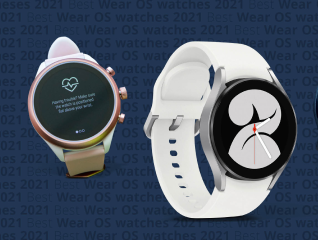
Search Online By Visual Features
If you cannot find the model number, use the watch’s design. Search using brand name and key features. Many websites show images and specs to help identify it.
Credit: www.bajajfinserv.in
Sync With Your Smartphone
Syncing your smartwatch with your smartphone is the easiest way to set the correct time. This process ensures both devices show the same, accurate time without manual adjustments. Most smartwatches automatically update time based on your phone’s settings. Follow simple steps to connect and sync seamlessly.
Enable Bluetooth Connection
Start by turning on Bluetooth on both your smartphone and smartwatch. Bluetooth allows the two devices to communicate wirelessly. Open your phone’s settings and find the Bluetooth option. Switch it on and make your phone discoverable. On your smartwatch, navigate to the Bluetooth menu and enable it too.
Wait for your smartwatch to appear in the list of available devices on your phone. Tap the name of your smartwatch to pair the devices. Confirm any pairing codes if prompted. Once connected, the watch will be ready to sync data, including time.
Use The Companion App
Download and install the official companion app for your smartwatch. This app controls many features, including time synchronization. Open the app and sign in or create an account if needed. Follow the app’s instructions to connect your watch.
Look for the sync or settings section inside the app. Select the option to sync time or update watch settings. The app will send your phone’s current time to your smartwatch. Your watch should now display the exact time as your phone.
Manually Adjust Time Settings
Manually adjusting the time settings on your smartwatch can be a straightforward process once you know where to look. Whether your watch isn’t syncing automatically or you’re traveling across time zones, setting the time yourself gives you full control. Let’s walk through the key steps to get your smartwatch showing the correct time instantly.
Access Settings Menu
Start by waking up your smartwatch and opening the main menu. Look for the Settingsicon, often represented by a gear symbol. If your watch has a touchscreen, swipe or tap to find it quickly.
Some smartwatches let you access settings by pressing a physical button instead. If you’re unsure, check your device manual or try holding down the side button to see if the settings menu pops up.
Find Date And Time Options
Within the Settings menu, scroll until you find options labeled Date & Timeor something similar. This section handles all your time-related preferences.
Occasionally, these options might be under a subcategory like Generalor System. Don’t hesitate to explore a bit; the menu structure can vary between brands and models.
Set Time Zone
Once inside the Date & Time settings, look for Time Zone. This setting ensures your watch matches the correct regional time.
Select your current location’s time zone from the list. If you travel often, updating this manually helps avoid confusion caused by automatic settings that may lag or fail.
Change Time And Date
Next, find the options to Set Timeand Set Date. You can manually enter the correct hour, minute, day, month, and year here.
Adjust these values carefully. Double-check AM/PM settings if your watch uses a 12-hour clock to prevent a 12-hour error in your schedule.
Have you ever missed a meeting because your smartwatch showed the wrong time? Manually setting the time can save you from such frustrating moments, especially when automatic syncing doesn’t work as expected.

Credit: www.youtube.com
Use Voice Commands
Using voice commands to set the time on your smartwatch is fast and simple. It saves you from scrolling through menus. Just speak directly to your watch and let it do the work. Many smartwatches support popular voice assistants like Google Assistant, Siri, or Alexa. This feature makes time setting hands-free and hassle-free.
Activate Your Smartwatch’s Voice Assistant
Start by waking up your voice assistant. Usually, you can do this by saying a wake word like “Hey Siri” or “OK Google.” Some watches have a dedicated button to press and hold. This action gets the assistant ready to listen to your command.
Speak The Time Setting Command Clearly
Use clear and simple phrases to set the time. Say something like, “Set the time to 3:30 PM.” The assistant will understand and change your watch’s time. Avoid background noise for better recognition.
Confirm The Time Has Been Updated
After issuing the command, check your watch’s display. Make sure the time matches what you requested. If it is incorrect, repeat the command or speak more clearly. Some watches ask for confirmation before saving changes.
Troubleshoot Common Voice Command Issues
- Make sure your watch’s microphone is not blocked.
- Check if the voice assistant is enabled in settings.
- Ensure your smartwatch is connected to the internet if needed.
- Speak slowly and clearly for better accuracy.
Troubleshoot Common Issues
Troubleshooting common issues helps keep your smartwatch’s time accurate. Problems with time updates, app syncing, or battery can cause incorrect time display. Simple checks and fixes often solve these problems fast. Follow these tips to get your watch working right again.
Time Not Updating
Sometimes, the watch does not update the time automatically. Check if your watch is set to the right time zone. Make sure the automatic time setting is enabled in watch settings. A manual time change might be necessary if auto update fails. Restart the watch after changing settings to apply updates.
App Sync Problems
Syncing issues often cause time errors. Ensure your phone’s Bluetooth is turned on and connected to the watch. Close and reopen the smartwatch app to refresh the connection. Update the app and watch firmware to the latest versions. Clear the app cache if syncing stays slow or stuck.
Battery And Restart Tips
Low battery can prevent time updates. Charge your watch fully before troubleshooting. Restart the device to fix temporary glitches. A forced restart can help if the watch freezes. Avoid draining the battery completely to keep the watch stable.
Tips For Accurate Timekeeping
Accurate timekeeping on your smartwatch is essential for daily tasks and appointments. Small errors can cause confusion and missed events. Follow simple tips to keep your watch showing the right time consistently.
Regular Syncing
Sync your smartwatch with your phone or computer often. This keeps the time accurate by updating it automatically. Many smartwatches sync each time they connect to your device. Check settings to ensure syncing is enabled.
Manual syncing can also help. Open the watch app and force a sync if you notice the time is off. Regular syncing prevents drift and keeps your watch reliable.
Keep Software Updated
Smartwatch makers release updates to fix bugs and improve accuracy. Install updates as soon as they become available. Outdated software can cause time errors and other issues.
Updates often include improvements to timekeeping features. Turn on automatic updates if possible. This reduces the chance of missing important fixes.
Frequently Asked Questions
How Do I Manually Set The Time On My Smartwatch?
To manually set your smartwatch time, open Settings, find Date & Time, disable automatic time, then adjust hours and minutes manually.
Can My Smartwatch Sync Time With My Smartphone?
Yes, most smartwatches sync time automatically when paired with a smartphone via Bluetooth or Wi-Fi, ensuring accurate time updates.
Why Is My Smartwatch Showing The Wrong Time?
Wrong time often occurs due to incorrect time zone settings or disabled automatic time sync. Check and update these settings.
How To Change Time Zone On My Smartwatch?
Go to Settings > Date & Time > Time Zone. Select your current zone to update your smartwatch time correctly.
Conclusion
Setting your smartwatch time is simple. Follow the steps provided. Check your manual for specific instructions. Different brands might vary slightly. Stay updated with software versions. This ensures accurate time settings. Practice makes it easier over time. Share these tips with friends.
Help them set their smartwatch too. Enjoy the convenience your smartwatch offers. Stay punctual and organized. Now you’re ready to use it efficiently. Happy timekeeping!