
Imagine having a device that effortlessly bridges the gap between creativity and productivity. With Apple’s advanced tablets and computers, paired with the intuitive Apple Pencil, you can turn your digital dreams into reality.
Whether you’re an artist sketching your next masterpiece, a student jotting down notes, or a professional fine-tuning your presentations, the right Apple device can revolutionize how you work and play. But with so many options available, how do you decide which Apple tablet or computer is the perfect fit for your needs?
The journey to finding your ideal device might seem daunting, but fear not. This guide is crafted to help you navigate through the choices, ensuring you pick a tool that not only meets your expectations but exceeds them. Let’s dive into the world of Apple technology and discover the perfect companion for your creative and professional endeavors.
Apple Pencil Compatibility
Discover the compatibility of Apple Pencil with various Apple devices. It works seamlessly with most iPad models, enhancing creativity and productivity. Explore its use with iPad Air, iPad Pro, and iPad Mini for an intuitive drawing and note-taking experience.
Apple Pencil Compatibility The Apple Pencil is a game-changer for digital artists, students, and professionals alike. Its seamless integration with Apple’s tablets and computers offers a new level of precision and creativity. But before you dive into creating your next masterpiece, it’s crucial to know which devices support this innovative tool.
Supported Devices
Not every Apple device works with the Apple Pencil, so it’s essential to check compatibility. As of now, several iPad models support this handy tool: – iPad Pro: Both 11-inch and 12.9-inch models are compatible. – iPad Air: 4th generation and later. – iPad: 6th generation and later. – iPad mini: 5th generation and later. If you own a Mac, remember that the Apple Pencil isn’t directly compatible. However, using Apple’s Sidecar feature, you can connect your iPad to your Mac, allowing you to use the Pencil on your Mac’s apps. Isn’t that a clever workaround?
Generations Of Apple Pencil
Apple offers two generations of its Pencil, each with distinct features. Knowing their differences can help you make the best choice: – Apple Pencil (1st Generation): – Compatible with older iPad models such as the iPad (6th generation) and iPad mini (5th generation). – It connects via a Lightning connector, which means you need to plug it directly into your iPad to charge. – Apple Pencil (2nd Generation): – Works with newer iPads like the iPad Pro (3rd generation and later) and iPad Air (4th generation). – It magnetically attaches and charges on the side of compatible iPads. This feature is particularly convenient, ensuring the Pencil is always ready when inspiration strikes. Before purchasing, ask yourself: What features do I value more in a stylus? The first generation offers broad compatibility, while the second generation provides cutting-edge convenience and new functionalities. Choose the one that aligns best with your creative needs.

Credit: www.chesona.com
Ipad Models With Pen Support
IPad models with pen support include the iPad Pro, iPad Air, and iPad Mini. These tablets work seamlessly with the Apple Pencil, perfect for drawing or note-taking. They offer a smooth and responsive experience, enhancing creativity and productivity.
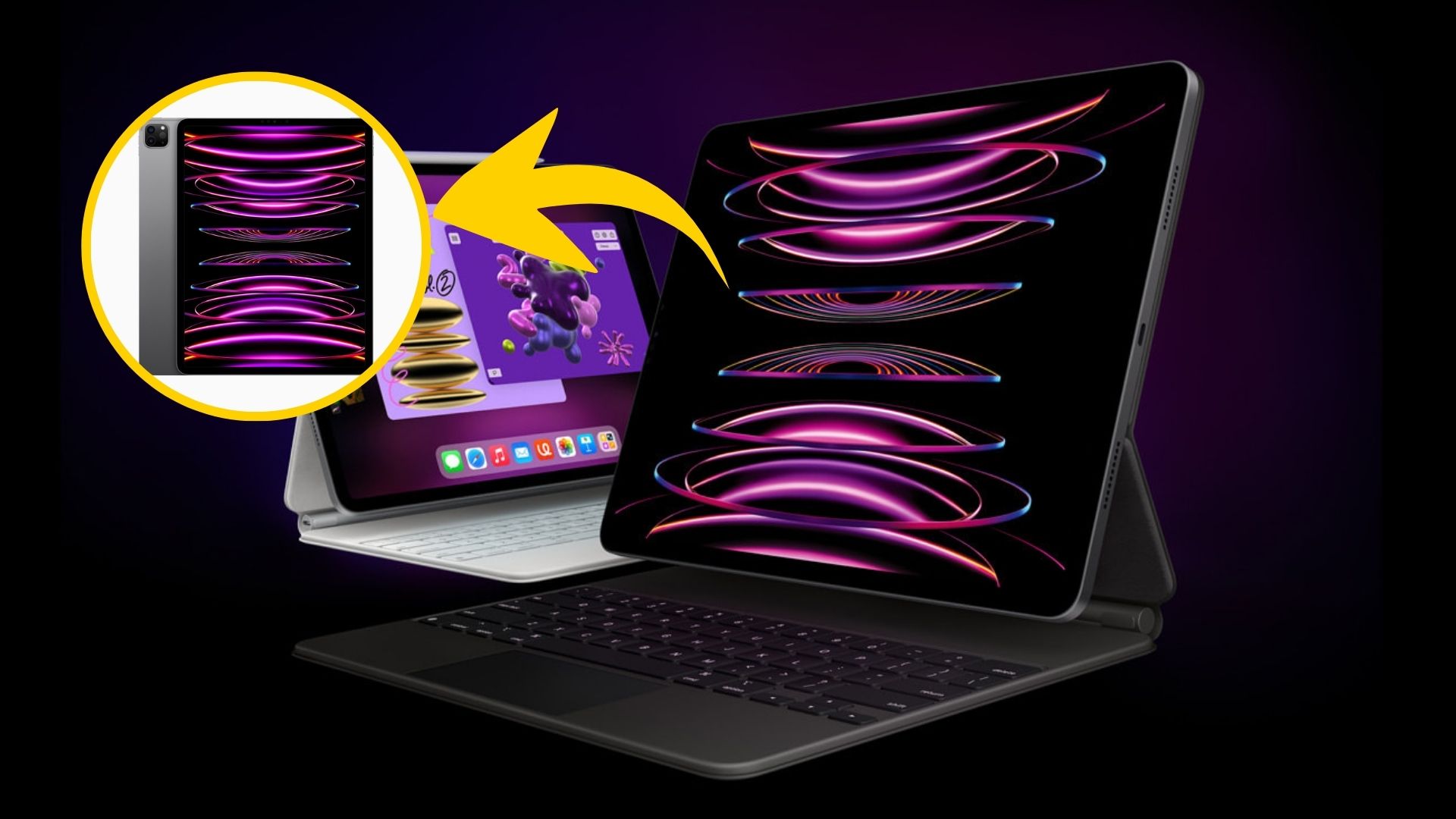
The world of technology has seen revolutionary advancements with Apple’s iPad models offering pen support, making digital interaction seamless and intuitive. Whether you’re sketching, jotting down notes, or navigating complex tasks, the Apple Pencil elevates the user experience across different iPad models. But which iPad should you choose for the best pen experience? Let’s dive into the features, capabilities, and options across various iPad models.
Ipad Pro Features
The iPad Pro is a powerhouse, designed for professionals who demand high performance. Equipped with the Apple Pencil, it transforms into a creative canvas or a digital notebook. Imagine editing photos with precision or sketching detailed illustrations with ease. The Pro’s Liquid Retina display and ProMotion technology ensure smooth and responsive pen interaction, making it ideal for artists and designers. Have you ever tried multitasking with the iPad Pro? Its advanced chip and graphics make handling multiple apps a breeze, while the pen allows for effortless navigation and annotation.
Ipad Air Capabilities
The iPad Air strikes a balance between power and affordability, offering pen support that caters to both casual users and professionals. Its thin and lightweight design makes it perfect for carrying around, whether to a coffee shop or a business meeting. With the Apple Pencil, you can effortlessly take notes or create stunning artwork. The Air features a vibrant display that captures every pen stroke with accuracy. Have you considered using the Air for digital learning? Its capabilities are perfect for students and educators who need to annotate documents or draw diagrams with precision.
Ipad Mini Options
For those who prefer a compact device, the iPad Mini offers impressive pen support in a small package. Don’t underestimate its size; it’s perfect for on-the-go creativity. With the Apple Pencil, the Mini becomes a portable sketchbook or a note-taking wonder. Its compact size makes it ideal for quick edits and annotations. Do you often find yourself needing to jot down ideas while traveling? The Mini’s portability and pen compatibility make it a great choice for writers and thinkers who need to capture inspiration anytime, anywhere. Choosing the right iPad model with pen support depends on your needs and lifestyle. Whether you’re a professional artist, a student, or someone who loves digital note-taking, there’s an iPad that fits your requirements perfectly. Which one will you choose to enhance your creative and productive journey?
Mac Computers And Stylus Usage
Many people wonder if they can use a stylus with Mac computers. While MacBooks and iMacs do not come with a built-in stylus, users have options. Third-party solutions and creative software make stylus usage possible on Macs. Understanding these options can enhance your creative projects.
Third-party Stylus For Mac
Several third-party styluses work well with Mac computers. Popular brands offer styluses that connect via Bluetooth. These styluses provide precision and ease for drawing or writing. They often come with apps to customize usage and improve efficiency. Choose a stylus that fits your needs and budget.
Touch Bar And Pen Interaction
The MacBook Pro’s Touch Bar offers unique interactions. It provides quick access to tools and features. A stylus can help navigate the Touch Bar more precisely. Although not designed for a stylus, it can offer creative shortcuts. It enhances productivity for creative professionals.
Choosing Between Ipad And Mac
Choosing between an iPad and a Mac can be a tough decision. Both offer unique features catering to diverse needs. Whether for work or creativity, selecting the right device is crucial. Let’s dive into key aspects to consider when choosing.
Performance Needs
Consider what tasks you perform regularly. iPads are great for casual use and apps. Macs handle intensive tasks like video editing or programming. If you need speed and power, Macs might be your best bet. iPads offer a smooth experience for daily tasks and light creative work.
Portability Considerations
Portability plays a vital role in device selection. iPads are lightweight and easy to carry. Ideal for traveling or working on the go. Macs are slightly bulkier but offer a full desktop experience. If carrying your device everywhere is important, iPads excel in mobility.
Creative Applications
Creative professionals need tools that support their art. iPads boast apps for sketching and designing with a pen. Macs provide advanced software for detailed projects. Those who draw or paint might prefer iPads. If editing photos and videos is key, Macs offer stronger applications.
Accessories For Enhanced Pen Use
Accessories for enhanced pen use can truly transform your Apple tablet or computer into a powerful creative tool. Whether you’re sketching, taking notes, or editing photos, the right accessories ensure that your pen glides smoothly and efficiently. Let’s explore the options that can amplify your pen experience.
Protective Cases And Stands
Protective cases and stands are essential for safeguarding your device and enhancing usability. Opt for cases that offer a built-in stand, allowing you to adjust the angle for optimal pen use. This not only protects your device but also provides a stable surface for writing.
Imagine being able to sketch while comfortably seated in a coffee shop, your tablet propped at the perfect angle. A quality case or stand can make this a reality, ensuring your creative flow isn’t interrupted by awkward positioning.
Screen Protectors For Better Writing
Screen protectors can improve your writing experience by offering a smoother surface for your pen. Consider matte or paper-like screen protectors that mimic the feel of writing on paper. They reduce glare and provide a tactile feedback similar to a traditional drawing pad.
Have you ever felt frustrated by slippery screens or unwanted marks? A screen protector can minimize these issues, allowing your pen strokes to be more precise and controlled.
Charging Solutions
Efficient charging solutions ensure your pen is always ready for action. Some pens require regular charging, and having a reliable charging dock or cable can prevent unwanted interruptions. Look for compact and portable options that fit your lifestyle.
Picture this: you’re in the midst of an inspired drawing session and your pen suddenly runs out of charge. With a dedicated charging solution, you can quickly recharge and continue without losing momentum.
Do you have a favorite accessory that enhances your pen use? Share your experiences and help others discover the perfect tools for their creative journey!
Software And Apps
Apple tablets and computers equipped with a pen offer a unique blend of software and apps that can transform your digital experience. Whether you’re a budding artist, a student taking notes, or a professional looking to boost productivity, there’s a realm of applications designed to complement your pen-driven device. Let’s dive into the world of software and apps that can elevate your Apple device usage.
Drawing And Design Apps
Apple devices are a canvas waiting to be painted, and with apps like Procreate and Adobe Fresco, your creative potential is limitless. These apps offer a spectrum of tools—from basic brushes to intricate layers—that make digital art feel intuitive. Imagine sketching your next masterpiece directly on your iPad and watching your ideas come to life. Have you tried experimenting with various brush textures to add depth to your illustrations?
Note-taking Applications
Gone are the days of scribbling notes on paper; apps like Notability and GoodNotes bring note-taking into the digital age. These apps allow you to seamlessly jot down ideas, annotate PDFs, and organize your notes with ease. Picture this: You’re in a lecture, and instead of flipping through pages, you can search and access your notes instantly. How might your productivity change with this kind of efficiency?
Productivity Tools
Enhancing productivity with Apple devices and pens is all about choosing the right tools. Apps like Microsoft OneNote and Evernote offer comprehensive features to streamline your workflow. Imagine managing projects, setting reminders, and collaborating with your team—all from the comfort of your tablet or computer. Have you explored the possibilities of integrating these tools into your daily routine?
Each app and tool mentioned opens up new possibilities, allowing you to tailor your device to your needs. With the right combination, your Apple tablet or computer using a pen can become an indispensable part of your daily life. What will you create or accomplish today?
Tips For Optimizing Pen Experience
Using a pen with your Apple tablet or computer can enhance your creativity. It allows you to draw, write, and navigate more naturally. To get the most out of your pen experience, follow these helpful tips.
Improving Precision
Precision is key in digital drawing and writing. Ensure your pen’s tip is clean and replace it if worn. Adjust the pen’s sensitivity settings in your device’s preferences. Try different angles and pressure levels while drawing or writing. This helps find the most comfortable and accurate setting for you.
Battery Life Management
Long battery life keeps your pen ready to use anytime. Charge the pen regularly and avoid letting it fully deplete. Turn off the pen when not in use to save battery. If your pen has a power-saving mode, activate it. This extends usage time and reduces charging frequency.
Customization And Settings
Tailor your pen settings for a personalized experience. Access the pen settings on your device. Adjust shortcuts and buttons to perform tasks quickly. Experiment with different modes like sketch or write. This customization can improve efficiency and enjoyment.

Credit: www.engadget.com
Credit: en.clickpetroleoegas.com.br
Frequently Asked Questions
What Apple Product Uses A Pen?
The Apple iPad uses the Apple Pencil. This stylus enhances creativity and productivity, offering precision for drawing and writing tasks. It pairs seamlessly with compatible iPad models, providing a natural feel for users. Ideal for artists, students, and professionals, it transforms the iPad into a versatile tool.
Which Ipad Models Have Pen?
Apple iPad models compatible with the Apple Pencil include iPad Pro, iPad Air, and iPad Mini. All iPad Pro models work with the Pencil. IPad Air (3rd generation and later) and iPad Mini (5th generation and later) support the Pencil too.
Can You Use An Apple Pen On A Computer?
Apple Pencil is primarily designed for iPad use. It doesn’t directly work with most computers. Some third-party apps might allow limited functionality, but compatibility isn’t guaranteed. Consider alternative styluses or graphic tablets for computer use.
What Ipads Can You Write On With A Pen?
You can write on iPads using a pen with Apple Pencil compatibility. Models include iPad Pro, iPad Air (3rd generation and later), iPad (6th generation and later), and iPad mini (5th generation and later). Ensure the Apple Pencil matches your iPad model for optimal performance.
Conclusion
Choosing the right Apple device depends on your needs. Tablets offer portability and ease of use. Perfect for artists and note-takers. Apple computers provide more power and versatility. Ideal for professionals and gamers. Consider your budget and usage requirements. The Apple Pencil enhances creativity and productivity.
Great for drawing, writing, and designing. Evaluate device compatibility with the Apple Pencil. Research features and reviews before buying. Make a well-informed decision. Balance functionality and cost. Both tablets and computers have unique benefits. Find the best fit for your lifestyle and work habits.
Enjoy your new Apple device experience!