
Building your own desktop computer can be an exciting and rewarding experience. Imagine the satisfaction of powering up a machine that you’ve crafted with your own hands.
But before you dive into this project, it’s essential to know what you need to succeed. Do you find yourself wondering about the exact components and tools required? Are you curious about how to choose the right parts without breaking the bank?
This guide is designed just for you. We’ll walk you through each step, helping you understand the essentials while ensuring you feel confident and empowered. By the end of this article, you’ll have a clear roadmap to creating a desktop computer that’s perfectly tailored to your needs. Let’s get started on building something amazing together!

Credit: www.hp.com
Choosing The Right Components
Building a desktop computer involves selecting components like the CPU, motherboard, and RAM. Ensure compatibility and performance needs match. Consider storage options, a power supply, and a case that fits your design preference.
Building a desktop computer is like assembling a puzzle, where each piece must fit perfectly to create a seamless system. Choosing the right components is a crucial step in this process. It determines not only the performance but also the longevity of your machine. Whether you’re a gamer, a designer, or a casual user, selecting components tailored to your needs is essential. Let’s dive into the key parts you’ll need to consider.
Processor Options
The processor, often called the CPU, is the brain of your computer. It handles all the instructions from your software. If you’re planning to game or edit videos, look for a powerful CPU like the Intel Core i7 or AMD Ryzen 7. For everyday tasks, a mid-range option like the Intel Core i5 or AMD Ryzen 5 might suffice. Think about the tasks you’ll perform and choose a processor that matches your needs.
Motherboard Compatibility
The motherboard is the backbone of your PC, connecting all components. Ensure compatibility with your chosen CPU. Check the socket type and chipset on both the processor and motherboard. If you’ve chosen an Intel CPU, look for motherboards with Intel chipsets. Similarly, pair AMD processors with AMD-compatible motherboards. Consider future upgrades and opt for a motherboard with extra slots for RAM and additional ports.
Memory Requirements
RAM, or memory, affects how quickly and smoothly your computer can run programs. More RAM means better multitasking. For gaming or creative work, aim for at least 16GB. Casual users can start with 8GB. Remember to check your motherboard’s RAM slots and maximum supported memory. An upgrade-friendly motherboard can save you headaches down the line.
Storage Choices
Storage is where all your data, from system files to personal photos, is housed. Solid State Drives (SSDs) offer speed and reliability, making your system boot faster. Consider a 500GB SSD for your operating system and essential software. Add a Hard Disk Drive (HDD) for additional storage if needed, especially for large files. Balancing SSD speed with HDD capacity can offer the best of both worlds. Choosing components can seem daunting, but breaking it down makes it manageable. Have you considered how your choices today will affect your computing experience tomorrow? Make informed decisions and you’ll have a desktop that not only meets your needs but also stands the test of time.
Power Supply Considerations
Choosing the right power supply is crucial for building a desktop computer. It ensures your components receive stable and adequate power. Consider wattage, efficiency ratings, and compatibility with your hardware to avoid issues.
Building a desktop computer requires careful selection of components. The power supply unit (PSU) is crucial. It affects performance and reliability. Choose wisely to ensure your PC runs smoothly.
Wattage Needs
Determine your PC’s wattage requirements first. Add up the power needs of all components. Include CPU, GPU, and other peripherals. Most systems need between 400W to 750W. High-performance gaming rigs might need more. Always choose a PSU with some extra wattage. This ensures stability and future upgrades.
Efficiency Ratings
Efficiency ratings are essential for energy conservation. Look for PSUs with 80 Plus certification. They waste less energy as heat. There are several levels: Bronze, Silver, Gold, Platinum, and Titanium. Gold and above offer higher efficiency. They cost more but save electricity in the long run.
Modular Vs. Non-modular
Consider modular or non-modular PSUs. Modular PSUs allow you to detach cables. This helps with cable management. Less clutter means better airflow. Non-modular PSUs have fixed cables. They are usually cheaper. Choose based on your budget and preference for tidiness. Selecting the right power supply is key. It powers every component in your build. Make informed decisions for a smooth and efficient setup.
Cooling Solutions
Building a desktop computer requires careful planning. One key component is cooling solutions. Cooling prevents overheating and ensures performance stability. It maintains the longevity of your components.
Air Cooling Vs. Liquid Cooling
Air cooling uses fans to dissipate heat. It’s cost-effective and simple to install. Fans move air across heatsinks, reducing temperature.
Liquid cooling uses water to transfer heat. It’s more efficient but complex. It requires pumps, tubes, and radiators. This system is quieter and better for overclocking.
Importance Of Thermal Paste
Thermal paste fills gaps between CPU and cooler. It improves heat conduction. Without it, heat transfer is less efficient. Even a small amount makes a big difference.
Apply evenly for optimal performance. Too much can cause issues. A pea-sized dot is usually enough.
Fan Placement Strategy
Correct fan placement enhances airflow. Use intake fans at the front. Exhaust fans at the back remove hot air.
Side fans can help cool specific components. Consider the direction of airflow. Push-pull configuration can improve efficiency.
Credit: www.theguardian.com
Graphics Card Selection
Choosing the right graphics card is crucial for building a desktop computer. It determines the visual performance and capabilities of your system. Whether you plan to game, edit videos, or simply browse the web, understanding graphics cards is essential.
Integrated Vs. Dedicated Graphics
Integrated graphics are built into the CPU. They are suitable for basic tasks. Dedicated graphics cards have their own memory and processing power. They are ideal for gaming and heavy multimedia tasks. Dedicated cards offer better graphics performance.
Performance Metrics
Performance is measured by several factors. Core count affects how quickly graphics are processed. Memory size determines how much data can be handled. Clock speed influences rendering speed. Consider these metrics when choosing a card.
Budget-friendly Options
Not all graphics cards are expensive. Some offer great performance at a low price. Look for cards from trusted brands. Compare prices and features. Balance cost with performance needs. Affordable options can still deliver good results.
Case Design And Functionality
Choosing the right case is crucial in building a desktop computer. It impacts performance, aesthetics, and usability. A well-chosen case ensures optimal airflow and component compatibility. Let’s explore key aspects of case design and functionality.
Size And Form Factor
The size of a case determines which components fit inside. Common sizes include ATX, Micro-ATX, and Mini-ITX. Larger cases offer more space for components and cooling. Smaller cases are compact but may limit hardware options. Choose a size that suits your component needs and desk space.
Cable Management
Good cable management keeps your build neat and improves airflow. Cases with built-in cable management features are ideal. Look for cases with grommets and tie-downs for easy routing. Clear paths for cables reduce clutter and boost cooling efficiency. Organize cables for a cleaner look and better performance.
Aesthetics And Features
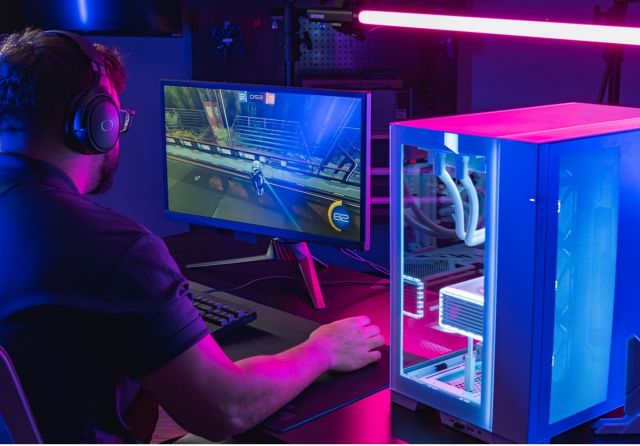
Aesthetics play a vital role in case selection. Transparent panels and LED lighting enhance appearance. Choose a design that matches your style and setup. Consider additional features like dust filters and USB ports. These add convenience and longevity to your build. Pick a case that combines beauty with practicality.
Credit: www.crucial.com
Peripherals And Accessories
Building a desktop computer requires essential peripherals and accessories. Consider a monitor, keyboard, and mouse for basic functionality. Quality speakers or headphones enhance the audio experience, while a webcam and microphone facilitate communication. Don’t forget a printer and external storage for added convenience and efficiency.
Building your own desktop computer is like crafting a unique piece of technology that perfectly suits your needs. While you may be focused on the core components, peripherals and accessories are equally important. They are your gateway to interacting with your system, enhancing your experience in ways you might not have imagined. So, what should you consider when choosing these vital additions?
Monitor And Display Types
The monitor is your window into the digital world. You might be tempted to pick any screen, but consider how display types impact your work or play. Do you prefer vibrant colors? An IPS panel could be your best choice. Looking for something that’s easy on the wallet? TN panels offer great value. Think about your daily tasks. Gamers often prioritize refresh rates for smooth visuals, while graphic designers need accurate color representation.
Keyboard And Mouse Preferences
Your keyboard and mouse are extensions of your hands. They should feel comfortable and respond quickly. Mechanical keyboards have a tactile feel and are popular among gamers and typists. If noise is a concern, opt for a quieter membrane keyboard. Consider the mouse too. An ergonomic design can prevent strain during long sessions. Wireless options offer flexibility, but wired ones provide reliability without battery worries.
Audio And Speaker Systems
Sound plays a critical role in your desktop setup. Whether you’re listening to music, watching movies, or playing games, quality audio enhances the experience. Do you want immersive sound for gaming? A surround sound system could be the answer. If space is limited, compact yet powerful speakers might be ideal. Think about headphones as well. Are you often in noisy environments? Noise-cancelling headphones can provide clarity and focus. Have you ever felt like your desktop setup is missing something? Often, it’s the peripherals and accessories that make the difference. What’s your priority when choosing these essential tools?
Operating System Choices
Choosing the right operating system is crucial when building a desktop computer. The operating system is the software that manages your computer’s hardware and software resources. It affects how you interact with your computer and what programs you can use. Let’s explore three popular operating systems: Windows, Linux, and macOS.
Windows Vs. Linux Vs. Macos
Windows is widely used and supports a vast range of applications. It’s user-friendly and compatible with many hardware configurations. Linux offers flexibility and customization. It’s open-source, which means it’s free to use and modify. It suits users who enjoy tinkering and learning. macOS, exclusive to Apple hardware, is known for its sleek design and smooth performance. It’s ideal for those who prefer a seamless ecosystem.
Installation Tips
Installing Windows is straightforward. Most versions come with a guided installation process. Ensure you have a valid license key. Linux requires downloading a distribution like Ubuntu. Create a bootable USB drive and follow the instructions. macOS installation is tied to Apple devices. Use the built-in App Store for installation.
Software Compatibility
Windows boasts extensive software compatibility. Most programs are designed for Windows. Linux has a growing library of applications. Some Windows software can run via compatibility layers. macOS offers a curated list of applications. Many creative tools are exclusive to macOS. Choosing the right OS depends on your software needs.
Assembly Process
Building a desktop computer requires essential components. A motherboard connects all parts, including the CPU, RAM, and storage. Choose a power supply to energize the system. Select a case to house everything securely.
Building your own desktop computer can be an exciting and rewarding project. The assembly process is where all your carefully chosen components come together to form a functioning machine. It’s like watching a puzzle piece itself together, but with the added bonus of crafting something uniquely yours. Let’s dive into the nuts and bolts of the assembly process and ensure you’re on the right track to building your dream desktop.
Step-by-step Guide
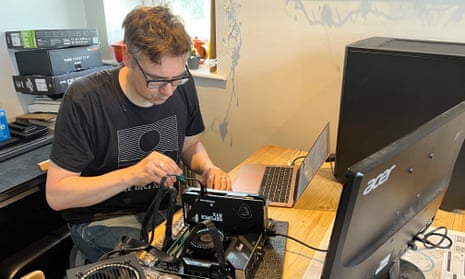
Start by gathering all your components and tools. You’ll need a screwdriver, thermal paste, and anti-static wristband. Begin with the motherboard. Place it on a non-static surface and install the CPU, ensuring it’s properly aligned. Add the CPU cooler, securing it firmly but not overly tight. Next, insert the RAM into the designated slots. Listen for a satisfying click to know it’s securely in place. Install your storage devices, whether SSD or HDD, into their respective bays. Connect the power supply, making sure each cable is routed neatly to avoid any airflow obstruction. Once the motherboard is ready, mount it into your case. Attach it with screws, ensuring it’s stable. Connect the power cables to the motherboard, CPU, and GPU. Double-check each connection to prevent any power issues. Lastly, install your GPU in the PCIe slot, securing it with screws for stability.
Common Mistakes To Avoid
A common mistake is not grounding yourself. Static electricity can damage your components, so wear an anti-static wristband. Another pitfall is using excessive force. Components should fit snugly, not forcibly. Avoid cable chaos. Improper cable management can hinder airflow and cooling. Keep cables tidy using ties or velcro straps. Forgetting thermal paste when installing the CPU cooler is a rookie error. Ensure you apply a small, even amount for optimal heat transfer.
Testing And Troubleshooting
Once assembled, it’s time to test your build. Connect your monitor and peripherals, then power on the system. If nothing happens, don’t panic. Check the power supply switch and make sure all cables are correctly connected. If the system powers on but doesn’t boot, listen for beep codes from the motherboard. These can indicate issues like RAM or GPU problems. Re-seat these components if necessary. Use the BIOS to ensure all hardware is recognized. Are you facing any unexpected issues or have doubts about your build? Share your experiences, and let’s troubleshoot together. Building a computer is a learning journey, and every challenge is a step towards mastering the art of assembly.
Frequently Asked Questions
What Is Needed To Build A Desktop Computer?
To build a desktop computer, you need a motherboard, CPU, RAM, storage drive, power supply, case, and GPU. Ensure compatibility between components. Add peripherals like a monitor, keyboard, and mouse. Install an operating system to get started. Enjoy customizing based on your needs and budget.
What Are The Basic Equipment Needed For Use Of A Desktop Computer System?
A desktop computer system requires a monitor, keyboard, mouse, CPU, power supply, and cables. A surge protector and speakers enhance the setup. Optional equipment includes a printer, webcam, and external storage.
How Much Money Do I Need To Build A Decent Pc?
Building a decent PC typically costs between $700 and $1,200. Costs vary based on components selected. Prioritize a good CPU, GPU, RAM, and SSD. Shop around for deals and discounts to save money. Always consider your specific needs and future upgrade potential when budgeting.
What Things Are Required For Pc?
A PC requires a motherboard, processor, RAM, storage drive, power supply, and a case. Ensure compatibility between components. Add peripherals like monitor, keyboard, and mouse for complete setup. Include a graphics card for gaming or intensive tasks. Install an operating system for functionality.
Conclusion
Building a desktop computer isn’t as hard as it seems. Start with the basics: case, motherboard, CPU, and RAM. Next, add storage and a power supply. Don’t forget the cooling system. Graphics card? Essential for gamers. Assemble each part carefully.
Ensure compatibility for best performance. Test the system after assembly. Troubleshooting? Check connections first. Customize your setup as needed. Upgrade components later. It’s a rewarding experience. Enjoy your new machine. Share your build with friends. Encourage others to try. Building a PC offers control and satisfaction.
Dive into tech. Explore possibilities. Your desktop awaits!