
Have you ever found yourself needing to access your computer from a different location? Maybe you’re traveling or working remotely, and you need to get some files or continue a project.
Remote Desktop Connection is your best friend in these situations. But before you can connect, there’s a crucial piece of information you need to know: your computer’s name. Without it, establishing a remote connection becomes quite a challenge. Understanding what your computer name is and where to find it can save you from unnecessary stress and time-wasting.
Imagine the confidence you’ll feel when you can effortlessly connect to your work computer from home or vice versa. You’ll discover not only how to find your computer name but also why it’s essential for seamless remote access. Ready to take control of your remote work experience? Let’s dive in and get you connected without a hitch.

Credit: www.kb.ischool.uw.edu
Finding Your Computer Name
When you’re setting up a Remote Desktop Connection, knowing your computer name is crucial. It’s like identifying your friend in a sea of people. Without the correct name, your connection won’t know where to go. Thankfully, there are several straightforward ways to find your computer name. Whether you’re a tech newbie or a seasoned pro, these methods are designed for simplicity. Let’s dive into how you can locate your computer name, ensuring a smooth remote connection experience.
Using System Properties
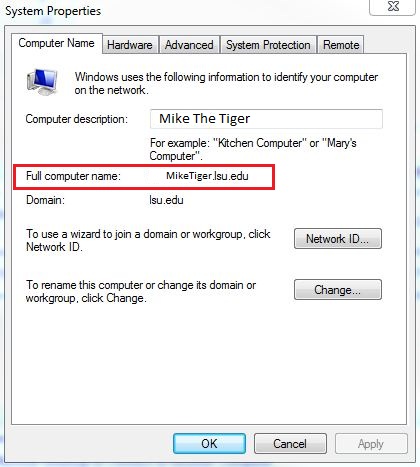
System Properties is a reliable way to find your computer name. Start by right-clicking on the My Computeror This PCicon on your desktop. If you can’t see it, no worries! You can also find it in your File Explorer.
Select Propertiesfrom the dropdown menu. A window will pop up displaying essential system information. Look for the Computer Namesection. This is where your computer’s name is proudly displayed. Write it down for your remote connection setup.
Checking Control Panel
The Control Panel is another avenue to find your computer name. Click on the Startbutton and type Control Panelin the search box. Once inside, navigate to System and Security, then click on System.
Here, you’ll find your computer name listed under the View basic information about your computersection. It’s neatly presented alongside other details like Windows edition and processor type. This method is particularly helpful if you want a comprehensive look at your system.
Command Prompt Method
Feeling adventurous? The Command Prompt offers a quick and geeky way to find your computer name. Open the Command Prompt by typing cmdin the Start menu search box. Once the black window appears, type hostnameand press Enter.
Your computer name will appear instantly. This method is perfect for those who love the simplicity and speed of command lines. It’s also a great party trick to impress your tech-savvy friends!
Finding your computer name doesn’t have to be a daunting task. With these methods, you can easily locate it and ensure your Remote Desktop Connection is set up smoothly. Have you tried any of these methods before, or do you have a favorite way to find your computer name? Share your experiences or questions in the comments below!
Credit: networking.grok.lsu.edu
Importance Of Computer Name In Remote Desktop
Understanding the importance of your computer’s name in a Remote Desktop connection is crucial for seamless interactions and network efficiency. Your computer name acts as an identifier, much like a street address helps a mailman find your house. It guides remote access software to the correct destination, ensuring you connect to the right computer every time. But why is it so important, and how can you make sure it’s working for you and not against you?
Role In Network Identification
Think of your computer name as your device’s passport in a network. It uniquely identifies your machine among all the other devices connected. This is particularly vital in a business environment where numerous computers operate simultaneously.
When you set up a Remote Desktop connection, the computer name tells your network which device to connect to. Without it, you’d be lost in a sea of IP addresses and network details. Ensuring your computer name is clear and unique can save time and prevent frustration.
Troubleshooting Connection Issues
When connection issues arise, your computer name can be a vital tool in troubleshooting. If you are unable to connect, verifying the computer name is often the first step. It’s like checking if you have the correct phone number when a call doesn’t go through.
Incorrect computer names can lead to failed connections. Imagine trying to enter a wrong address in a GPS; you won’t reach your destination. Double-checking your computer name can resolve issues before they escalate, saving you a call to IT support.
Have you ever wondered if a simple oversight like a typo in your computer name could disrupt your workday? Paying attention to this small detail can make a big difference. Next time you’re setting up a Remote Desktop connection, take a moment to ensure everything is correct, and you’ll save yourself from unnecessary headaches.
Changing Your Computer Name
Changing your computer name is important for a smooth Remote Desktop Connection. It helps identify your device easily on a network. This makes remote tasks efficient. Follow simple steps to change your computer name.
Steps To Change
First, access the Control Panel on your computer. Select ‘System and Security’. Then, click on ‘System’. Find ‘Change settings’ under ‘Computer name, domain, and workgroup settings’. Click on it to open the System Properties window.
In the System Properties, go to the ‘Computer Name’ tab. Click ‘Change’. Enter the new name for your computer. Ensure it is unique and easy to remember. Click ‘OK’ to confirm the change.
Restart your computer to apply the new name. This ensures the changes take effect. Now, your computer name is updated.
Considerations Before Renaming
Think about the impact on network connections. Renaming might affect shared resources. Other devices may need updates to recognize the new name.
Check software licenses tied to your current computer name. Some applications require the old name for functionality. Ensure compatibility with software and devices.
Choose a name that reflects your device purpose. Keep it simple and descriptive. Avoid special characters or spaces that might cause confusion.
Renaming can affect remote connections. Ensure all network settings are updated accordingly. This helps maintain a stable connection.
Credit: www.anyviewer.com
Setting Up Remote Desktop Connection
Setting up a Remote Desktop Connection can feel overwhelming. But with a few steps, your computer can connect remotely. This guide explains how to set up your computer name for Remote Desktop.
Enabling Remote Desktop
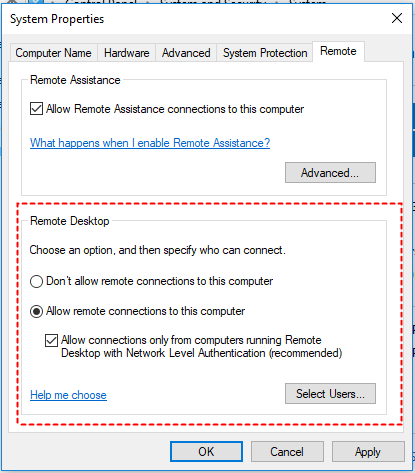
First, enable Remote Desktop on your computer. Go to your system settings. Find the “Remote Desktop” option. Turn it on. This allows other devices to connect to your computer. Make sure you use a secure password. This keeps your computer safe.
Firewall And Network Settings
Check your firewall settings next. Firewalls protect your computer. But they might block remote connections. Open the firewall settings. Allow Remote Desktop through the firewall. This ensures a smooth connection.
Also, check your network settings. Ensure your computer is connected to the internet. A stable connection is crucial. This helps prevent disruptions during remote sessions.
Common Issues And Solutions
Connecting to a remote desktop can sometimes be tricky. Users might face challenges that can disrupt their workflow. Understanding common issues and solutions helps maintain a smooth connection.
Connection Failures
Connection failures often frustrate users. Check your network connection first. Ensure you have a stable internet connection. Verify the computer name is correct. A mistyped name can prevent connection. Restart your router if issues persist. Sometimes, firewall settings block remote connections. Adjust your firewall settings to allow remote access. Ensure your remote desktop software is updated.
Security Concerns
Security is a top priority for remote connections. Use strong passwords for remote access. Avoid using common or simple passwords. Enable two-factor authentication if available. It adds an extra layer of security. Keep your system and software updated. Updates often fix security vulnerabilities. Be cautious of suspicious emails or links. They may contain malware that compromises security.
Tips For Secure Remote Access
Remote desktop connections have become essential tools for accessing your computer from afar, allowing you to work seamlessly from any location. However, ensuring the security of your remote access is crucial to protect sensitive data and maintain privacy. How can you strengthen your remote desktop connection against potential threats? Here are some practical tips to enhance your security.
Strong Passwords
Imagine your password as the first line of defense against unauthorized access. A strong password is your shield. Avoid using common words or predictable sequences. Instead, opt for a combination of letters, numbers, and symbols. For instance, if your favorite number is seven, consider integrating it in a creative way. Would you feel safe knowing your passwords are easy to crack? The stronger your password, the better protected your remote desktop connection will be.
Two-factor Authentication
Two-factor authentication (2FA) adds an extra layer of security by requiring not just one, but two forms of verification. This method can significantly reduce the risk of unauthorized access. Picture this: even if someone guesses your password, they still need the second form of identification—often a code sent to your mobile device. Have you ever locked your door and wished for a second lock for peace of mind? 2FA is like that second lock for your remote desktop connection.
Remote access is convenient but requires vigilance. By implementing strong passwords and enabling two-factor authentication, you can safeguard your computer against threats. Have you taken steps to secure your remote desktop connection yet? If not, now’s the time to start. Embrace these tips and enjoy peace of mind when accessing your computer remotely.
Frequently Asked Questions
What Is My Pc Username For Remote Desktop?
Find your PC username by navigating to Settings > Accounts > Your Info. Use this name for Remote Desktop access. Ensure you have the correct permissions.
How Do I Find My Desktop Computer Name?
Open the Start menu, type “Control Panel,” and select it. Click “System and Security,” then “System. ” Your computer name is listed under “Computer name, domain, and workgroup settings. “
What Is The Remote Desktop Service Name?
The Remote Desktop service is called “Remote Desktop Services” (RDS) on Windows. It allows users to access and control computers remotely. Ensure the service is enabled and properly configured for secure remote connections.
What Is My Computer Name And Ip Address?
Find your computer name and IP address by accessing system settings. On Windows, go to Control Panel > System. On Mac, navigate to System Preferences > Network. Your computer name and IP address are listed there. Alternatively, use the command prompt for Windows or Terminal for Mac with specific commands.
Conclusion
Knowing your computer name is crucial for Remote Desktop Connection. It ensures a smooth connection process. Without it, accessing your computer remotely becomes difficult. So, always keep it handy. This little detail can save time and effort. Remember to double-check your settings.
A small mistake can lead to big problems. Practice using these steps regularly. It makes you confident and efficient. Remote access is a helpful tool. Use it wisely and securely. With the right information, you can connect easily. Enjoy the convenience of Remote Desktop.
Your computer name is your key.