
Have you ever looked at your desktop computer and wondered what all those parts are called? Understanding the components of a desktop computer can feel like deciphering a secret code.
Yet, this knowledge is essential, whether you’re troubleshooting issues, upgrading your system, or simply satisfying your curiosity. Imagine having the confidence to talk about your computer’s hardware like a pro. Knowing these parts will not only empower you but also help you make informed decisions when buying or upgrading.
Let’s unravel the mystery together, so you can gain clarity and control over your desktop computer. Ready to dive in and discover what makes your computer tick?
Central Processing Unit (cpu)
The Central Processing Unit, or CPU, is often referred to as the brain of your computer. It plays a crucial role in interpreting and executing most of the commands from your computer’s hardware and software. Understanding the CPU’s components can help you make informed decisions when upgrading or building your own desktop.
What Is A Central Processing Unit (cpu)?
The CPU is a small chip located on your computer’s motherboard. It performs calculations and tasks that allow your computer to function. Think of it as the command center, processing instructions and managing the flow of information throughout your system.
Components Of A Cpu
- Arithmetic Logic Unit (ALU):This part handles all arithmetic operations like addition and subtraction. It also performs logical operations, such as comparing data.
- Control Unit (CU):The control unit directs the operation of the processor. It tells the ALU what operations to perform and manages the flow of data between the CPU and other components.
- Registers:These are small storage locations within the CPU. They hold data temporarily and are essential for the CPU to perform tasks quickly.
- Cache:A smaller, faster memory that stores copies of frequently accessed data from main memory. It helps speed up processing by reducing the time needed to access data from the main memory.
How Does The Cpu Affect Performance?
The performance of your computer heavily relies on the CPU. A faster CPU can handle more calculations per second, improving the overall speed of your computer. It’s like having a more efficient worker—tasks get done quicker, and you can accomplish more in less time.
Choosing The Right Cpu For Your Needs
When selecting a CPU, consider what you’ll be using your computer for. If you’re into gaming or video editing, a high-performance CPU is crucial. For simple tasks like browsing and word processing, a less powerful CPU might suffice and save you money.
Have you ever upgraded your CPU and noticed a difference? Share your experience in the comments below.
Understanding the CPU’s role and its components can enhance your computing experience. Next time you boot up your desktop, take a moment to appreciate the powerful chip working tirelessly behind the scenes.
Motherboard
The motherboard is the main circuit board in a desktop computer. It connects all the computer’s parts, such as the processor, memory, and storage devices. The motherboard ensures these components work together seamlessly, making it essential for a computer’s operation.
The motherboard is the heart of your desktop computer. It connects all the components and allows them to communicate. Without it, your computer wouldn’t function. Think of it as the central hub where everything plugs in and works together. Whether you’re a tech newbie or a seasoned enthusiast, understanding the motherboard can enhance your computing experience.
1. What Is A Motherboard?
The motherboard is a large circuit board inside your computer case. It houses the crucial components like the CPU, RAM, and storage. It acts as the central nervous system for your desktop, ensuring all parts work in harmony.
2. Components Of A Motherboard
– CPU Socket: This is where the brain of your computer, the CPU, sits. It’s crucial for processing tasks and running your programs. – RAM Slots: These are slots where you insert your memory sticks. More RAM means your computer can handle more tasks at once. – Expansion Slots: Graphics cards, sound cards, and other add-ons fit here. They give your computer additional capabilities. – Power Connectors: These provide the necessary power to the motherboard and its components. Without them, nothing would run.
3. How To Choose The Right Motherboard
Choosing a motherboard is like picking the foundation of a house. It determines what upgrades you can make in the future. Ensure it has enough slots for your needs. Check for compatibility with your CPU and other components. A mismatch could lead to headaches and extra costs.
4. Personal Experience With Motherboards
I remember building my first computer. Picking the right motherboard was daunting. I wanted to ensure everything would fit and work together seamlessly. After some research, I chose one with plenty of RAM slots and expansion options. It allowed me to upgrade easily over the years.
5. Common Issues And Troubleshooting
A non-responsive computer might point to motherboard issues. First, check all connections and power supply. If problems persist, consider seeking professional help. Sometimes a simple reset or replacing a faulty component can solve the issue.
6. Final Thoughts On Motherboards
Understanding your motherboard can save you time and money. It allows you to make informed decisions about upgrades and repairs. What will you consider when choosing your next motherboard? Engage with your computer’s inner workings to enhance your tech journey.
Random Access Memory (ram)
Random Access Memory (RAM) is crucial for a computer’s performance. It temporarily stores data, enabling faster access and processing. RAM affects speed and multitasking abilities, playing a vital role in the efficiency of a desktop computer.
Random Access Memory, or RAM, is often called the “working memory” of a computer. It’s the part that temporarily stores data and programs your computer is using right now. Without enough RAM, your computer can slow down or struggle to run multiple applications at once. Have you ever opened too many tabs in a browser and watched your computer crawl? That’s your RAM reaching its limit. Understanding RAM’s role can help you make smarter decisions when upgrading or buying a new desktop.
What Is Ram And Why Is It Important?
RAM is a crucial component in your desktop that acts like a short-term memory bank. It holds the data and instructions that your CPU needs in real-time. This means every time you type a document or play a video game, RAM is doing the heavy lifting. Think of RAM as your desk workspace. The larger the desk, the more papers and books you can spread out and work with at the same time. Similarly, more RAM lets your computer handle more tasks simultaneously without slowing down.
Types Of Ram
Not all RAM is the same. There are different types, such as DDR3, DDR4, and the latest DDR5. Each generation offers faster data transfer rates and improved efficiency. DDR4 is the most common type found in modern desktops. It balances speed and cost, making it a popular choice for many users. If you’re building a new PC, consider the type of RAM your motherboard supports. Mixing different types is not recommended, as it can lead to compatibility issues.
How Much Ram Do You Need?
The amount of RAM you need depends on your usage. If you’re just browsing the web and checking emails, 8GB might be enough. For more intensive tasks like video editing or gaming, 16GB or more is recommended. Having more RAM allows for smoother multitasking and better performance. Remember, you can always upgrade later if you find your current setup isn’t keeping up.
Upgrading Your Ram
Upgrading RAM is one of the easiest ways to boost your desktop’s performance. It involves opening your computer case and adding more memory sticks. Before you upgrade, check your motherboard’s RAM slot capacity. Some motherboards may limit the amount of RAM you can install. Once you know your limits, purchase the right type and size of RAM for your system. A quick online search or consultation with a tech-savvy friend can make this process a breeze.
Common Ram-related Issues
Have you experienced frequent crashes or random reboots? These could be signs of RAM issues. Faulty RAM can cause system instability and data corruption. Running a memory diagnostic tool can help identify problems. If issues persist, replacing the faulty RAM might be necessary. Keep your RAM clean and seated properly. Dust buildup can sometimes cause connectivity problems. Regular maintenance can help extend the life of your RAM and keep your desktop running smoothly. Are you ready to give your computer a speed boost? Upgrading your RAM might be the simple solution you’ve been looking for.
Credit: adjurfhoxdemon.weebly.com
Storage Devices
Storage devices are crucial components of a desktop computer, responsible for storing your data, applications, and operating system. They determine how quickly you can access files and how much information your computer can hold. Understanding the different types of storage devices can help you make informed choices when upgrading or building a computer. Let’s take a closer look at two primary types: the Hard Disk Drive (HDD) and the Solid State Drive (SSD).
Hard Disk Drive (hdd)
Hard Disk Drives have been around for decades and are known for their reliability and affordability. They use spinning magnetic disks to read and write data, which means they can store a large amount of information at a lower cost compared to SSDs.
If you’ve ever heard a faint humming sound from your computer, that’s likely the HDD at work. It has mechanical parts, which can make it slower and more prone to wear and tear over time. But don’t let that deter you; HDDs are excellent for archiving large files like movies, music, and photos.
Have you ever wondered why your computer takes longer to boot up or open applications? It might be due to the HDD. While great for bulk storage, it can lag behind in speed compared to newer technologies.
Solid State Drive (ssd)
Solid State Drives are the modern alternative to HDDs. They use flash memory, similar to a USB drive, to store data. This technology allows SSDs to operate much faster, providing quick boot times and rapid application launches.
Imagine clicking on a program and having it open almost instantly. That’s the magic of SSDs. They have no moving parts, making them more durable and less susceptible to physical damage. However, this speed comes at a higher price per gigabyte compared to HDDs.
Are you considering upgrading your computer for better performance? An SSD might be your best bet. It can drastically improve your computing experience, especially if you’re into gaming or video editing.
When choosing between HDD and SSD, ask yourself: what do you value more, speed or storage space? Understanding your needs will guide you in making the right choice for your desktop’s storage solution.
Power Supply Unit (psu)
The Power Supply Unit (PSU) is the heart of a desktop computer. It converts electricity from the wall outlet into usable power for the computer. Without it, your computer won’t start. The PSU ensures that all components get the right amount of power. This is crucial for the system’s performance and longevity.
Choosing the right PSU is vital. A poor choice can lead to system instability. It can also cause hardware failure. Always look for a reliable brand. Ensure it matches your computer’s power needs.
What Does A Psu Do?
The PSU converts AC to DC power. Computers need DC power to operate. It distributes power to the motherboard, CPU, and other components. The PSU keeps the computer running smoothly. It also protects against power surges.
Types Of Psus
PSUs come in various sizes and capacities. There are modular, semi-modular, and non-modular PSUs. Modular PSUs allow for better cable management. Semi-modular PSUs offer a mix of fixed and removable cables. Non-modular PSUs have fixed cables. Choose based on your needs and case size.
Psu Ratings And Efficiency
PSUs are rated by wattage. Higher wattage means more power capacity. Efficiency is also important. Look for the 80 PLUS certification. This ensures the PSU is energy-efficient. It saves on electricity bills and reduces heat.
Common Psu Problems
PSUs can sometimes fail. Symptoms include random shutdowns and failure to boot. Overheating can also occur. Ensure proper ventilation in your case. A faulty PSU might make strange noises. Always replace a failing PSU promptly.
Graphics Processing Unit (gpu)
The Graphics Processing Unit (GPU) is a crucial part of your desktop computer, especially if you’re into gaming, graphic design, or video editing. It’s responsible for rendering images, animations, and videos, making them appear smoother and more realistic. But even if you’re not a gamer or a designer, a good GPU can enhance your overall computing experience by improving the speed and efficiency of your system.
What Is A Gpu?
Think of the GPU as the engine behind the visuals on your screen. It processes data rapidly to ensure that images are generated quickly and with high quality. Unlike a CPU, which handles a variety of tasks, a GPU specializes in graphics computations. Do you remember the last time you watched a high-definition video without any lag? You can thank your GPU for that seamless experience.
Why Is A Gpu Important?
If you’ve ever played a video game and marveled at the stunning graphics, the GPU was hard at work. It allows for better frame rates, higher resolution, and more detailed textures. Even if you’re editing videos or working with 3D models, a powerful GPU can dramatically reduce render times. Have you noticed how smooth your gaming experience is when you upgrade your GPU? It’s not just about aesthetics; it’s about performance.
Choosing The Right Gpu
When selecting a GPU, consider your usage. Are you a hardcore gamer or a casual internet surfer? A high-end GPU might be overkill for browsing and streaming, but essential for heavy gaming or design work. Check compatibility with your motherboard and power supply. Imagine investing in a top-tier GPU only to find it doesn’t fit your system’s requirements—it’s a scenario best avoided.
Installing A Gpu
Installing a GPU is simpler than you might think. Ensure your computer is powered off, then open the case. Locate the PCI-Express slot, where your GPU will fit. Carefully insert the GPU until it clicks into place. Secure it with screws, and connect it to the power supply. Have you ever felt that sense of accomplishment after successfully upgrading your hardware? That’s exactly what you’ll experience after installing a GPU.
Maintaining Your Gpu
Keep your GPU running smoothly by ensuring it stays cool. Dust can accumulate and lead to overheating. Regular cleaning can prevent this. You wouldn’t want your computer to crash during an important project, would you? Monitor the temperature and performance using software tools to catch any issues early.
Whether you’re upgrading for gaming or enhancing your video editing capabilities, understanding your GPU’s role is key. How does your current GPU stack up against others on the market? Are you maximizing its potential? These questions can help guide your next tech upgrade decision.
Cooling System
The cooling system in a desktop computer is crucial. It prevents overheating. Overheating can damage sensitive components. Proper cooling ensures smooth performance and longevity. There are two main types of cooling systems. Fans and liquid cooling each serve unique purposes. Let’s explore these options below.
Fans
Fans are the most common cooling method. They circulate air within the computer case. This helps dissipate heat from critical components like the CPU and GPU. Fans are affordable and easy to install. They come in different sizes and speeds. Larger fans often move more air quietly. Smaller fans might be noisier but fit tighter spaces. Optimal fan placement enhances cooling efficiency.
Liquid Cooling
Liquid cooling offers a quieter solution. It uses liquid to absorb and transfer heat. This method often cools better than fans. It is ideal for high-performance systems. Liquid cooling systems include a pump, radiator, and coolant. The pump circulates coolant through tubes. The radiator dissipates heat away from the computer. This setup can be complex to install. It requires careful monitoring to prevent leaks. Despite complexity, it provides impressive cooling results.
Peripheral Devices
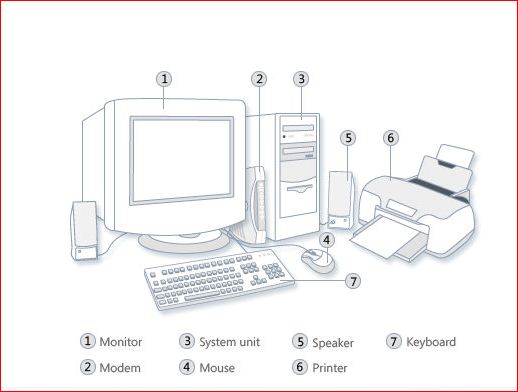
Peripheral devices connect to the main computer system. These devices help users interact with the computer. They are vital for input and output tasks. Let’s explore some key peripherals.
Monitor
The monitor displays visuals from the computer. It acts as the computer’s screen. Monitors come in different sizes and resolutions. They show text, images, and videos. A high-resolution monitor gives clear images. Most monitors are either LCD or LED types.
Keyboard
The keyboard allows text and command input. It has keys for letters, numbers, and symbols. Users type to create documents or send messages. Keyboards can be wired or wireless. Some keyboards also have extra function keys.
Mouse
The mouse helps users point and click. It controls the cursor on the screen. A mouse can be optical or laser. Many mice are wireless for easy movement. Some have extra buttons for special functions.
Ports And Connectors
When you glance at the back or sides of your desktop computer, you will likely see a myriad of ports and connectors. Each serves a unique purpose, allowing you to connect various devices and peripherals to your computer for a seamless experience. Whether you’re plugging in a mouse or setting up a dual-monitor display, these ports are essential for your daily computing tasks. Understanding them can significantly enhance your setup and make your digital life more efficient. Let’s dive into some of the most common ports and connectors that you will encounter.
Usb Ports
USB ports are arguably the most ubiquitous connectors you’ll find on a desktop. They allow you to connect a variety of devices, from keyboards and mice to external hard drives. Ever found yourself in a situation where you’re hunting for a free USB port? It’s a common scenario as they are essential for data transfer and power delivery. USB ports come in different types, like USB Type-A and USB Type-C, each catering to different needs. Type-C is becoming increasingly popular due to its reversible design and faster data transfer speeds.
Hdmi And Displayports
These ports are critical for connecting your computer to a monitor or TV screen. HDMI is widely used because it carries both audio and video signals, making it a convenient choice for setting up a high-definition display. DisplayPort, on the other hand, is favored for its ability to support higher resolutions and refresh rates, ideal for gaming enthusiasts and professionals who require precise visuals. Have you ever experienced a flickering screen? Sometimes it’s just about choosing the right port for your display needs.
Audio Jacks
Audio jacks are your gateway to sound. Whether you’re plugging in headphones for a private listening experience or connecting external speakers for a party, these jacks are indispensable. They usually come in the standard 3.5mm size, compatible with most audio devices. Have you ever wondered why your audio sounds off? It might be due to a loose connection or the need for a better-quality cable. Ensuring a firm connection can make all the difference in your audio experience.
Understanding these ports and connectors can transform your desktop into a powerful hub, tailored to your unique needs. Have you checked which ports you use the most? Knowing this can help optimize your setup, making your computer work smarter for you.
Expansion Cards
Expansion cards are essential components in a desktop computer. They enhance the functionality of your computer by adding specific features. These cards fit into slots on the motherboard. Each card serves a unique purpose to improve your computing experience.
Network Interface Card
The Network Interface Card (NIC) connects your computer to a network. It allows your computer to communicate with other devices. NICs can be wired or wireless, depending on the type of connection needed. A wired NIC uses an Ethernet cable to connect. Wireless NICs connect through Wi-Fi signals. They help in accessing the internet and sharing files. A high-quality NIC ensures smooth and fast network performance.
Sound Card
Sound cards manage audio output and input for your computer. They enhance the audio experience for music and games. Sound cards can be built-in or installed as expansion cards. A dedicated sound card offers better audio quality. It reduces noise and improves sound clarity. This is crucial for audio editing and high-quality playback. Gamers and music enthusiasts often prefer dedicated sound cards.
Casing
The casing of a desktop computer is more than just a shell. It houses vital components and protects them from dust and damage. A well-chosen casing can also enhance airflow, keeping your system cool. Casing designs vary, allowing users to choose based on space and style preferences.
Tower
A tower casing is tall and spacious. It offers plenty of room for components. Users can add extra hardware easily. This type is ideal for enthusiasts who upgrade often. Its size allows better airflow, reducing overheating risks.
Mini Tower
The mini tower is more compact. It fits well in smaller spaces. Despite its size, it can host powerful components. It’s perfect for those with limited desk space. This design maintains efficiency without compromising performance.

Credit: en.wikipedia.org

Credit: www.dummies.com
Frequently Asked Questions
What Do You Call The Parts Of A Desktop Computer?
A desktop computer consists of the monitor, keyboard, mouse, CPU, motherboard, RAM, hard drive, and power supply.
What Are The 7 Components Of A Desktop Computer?
A desktop computer consists of seven key components: CPU, motherboard, RAM, storage drive, power supply, graphics card, and cooling system. Each plays a vital role in performance and functionality, ensuring efficient operation and user experience.
What Are The 12 Parts Of A Computer?
A computer consists of the CPU, motherboard, RAM, hard drive, power supply, GPU, optical drive, monitor, keyboard, mouse, cooling system, and sound card.
What Are The 10 Parts Of A Computer?
A computer consists of 10 essential parts: CPU, motherboard, RAM, hard drive, power supply, graphics card, monitor, keyboard, mouse, and cooling system.
Conclusion
Understanding desktop computer parts is key. Each component has a specific role. The CPU processes data. The motherboard connects everything. RAM stores temporary data. The hard drive keeps your files safe. The power supply gives energy. The graphics card boosts visuals.
Knowing these helps you make informed choices. It also aids troubleshooting. Next time you see a desktop, recognize its parts. Appreciate the technology within. This knowledge empowers you. Stay curious and explore more about computers. Your journey in tech just began.