
Imagine you’re all set to dive into your favorite online game or finish up a crucial project, and suddenly, your computer monitor displays those dreaded words: “No Signal.” Frustrating, isn’t it?
You might feel a rush of panic, wondering if your monitor has just given up on you or if there’s something more sinister at play. But before you start considering a costly repair or replacement, it’s important to understand what “No Signal” actually means and what could be causing it.
We’ll demystify this common issue, offering you clear explanations and actionable solutions. By the end, you’ll be equipped with the knowledge to tackle the problem head-on, saving you time and stress. So, let’s uncover the mystery behind “No Signal” and get your screen back in action.
Common Causes Of No Signal
Few things are as frustrating as sitting down to use your computer, only to be greeted by a blank monitor with a “No Signal” message. Understanding why this happens can save you time and stress. Let’s explore some common causes behind this issue, so you can quickly troubleshoot and get back to your tasks.
Cable Connection Issues
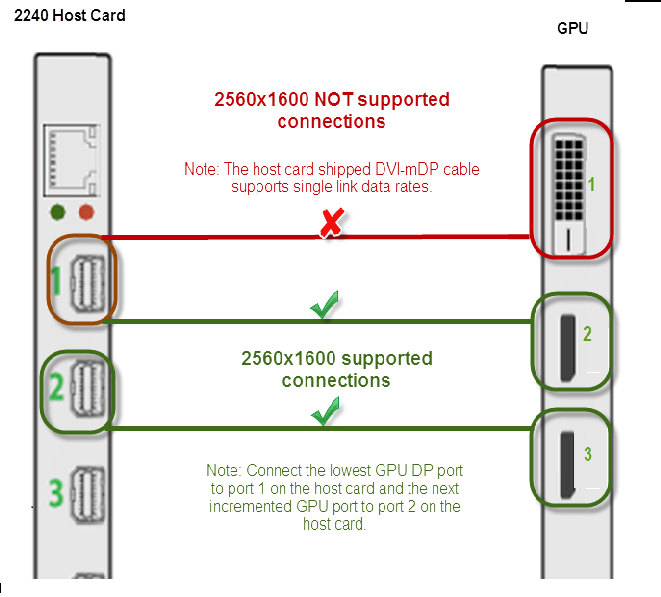
Often, the culprit is a loose or disconnected cable. It’s easy to overlook a simple tug or bump that can disrupt the connection. Double-check your HDMI, DisplayPort, or VGA cables. Make sure they are securely plugged into both the monitor and the computer. Sometimes, a cable can appear connected but isn’t making proper contact. Try unplugging and replugging it to ensure a firm connection.
Monitor Input Settings
Your monitor might be set to the wrong input source, leading to the “No Signal” message. Modern monitors have multiple input options like HDMI, DVI, and VGA. Use the buttons on your monitor to cycle through input sources. If your computer is connected via HDMI, ensure the monitor is set to HDMI input. This simple check can often resolve the issue.
Graphics Card Problems
A faulty graphics card can also lead to signal issues. If your computer has integrated graphics, consider switching to it temporarily to rule out the graphics card as the problem. Also, ensure the card is properly seated in its slot. Dust and debris can cause connectivity issues, so gently clean the slot if necessary. A visual inspection of the card and slot can reveal if it’s the source of the problem.
Faulty Hardware
On rare occasions, the issue may be due to faulty hardware. This could be a defective monitor, a damaged cable, or even a failing motherboard. If you have access to another monitor or cable, try swapping them out to isolate the problem. Does your computer work with another monitor? If so, the issue likely lies with your original monitor. Identifying faulty hardware often involves a process of elimination.
Have you ever experienced this issue? Which solution worked best for you? Troubleshooting these common causes can often save the day. The key is a methodical approach to identify and rectify the problem.
Credit: anyware.hp.com
Troubleshooting Cable Connections
Seeing a ‘No Signal’ message on your computer monitor can be frustrating. Often, the issue lies with cable connections. Ensuring proper cable connections can quickly resolve the problem and restore your display. Let’s explore the steps to troubleshoot these connections effectively.
Checking Hdmi And Displayport Connections
Start by examining the HDMI and DisplayPort cables. Ensure they are securely connected to both the monitor and the computer. Loose cables can interrupt the signal. Check if the ports are clean and free from dust or debris. A quick reconnection can sometimes solve the issue.
Inspecting For Damaged Cables
Damaged cables can lead to a ‘No Signal’ display. Look for visible signs of wear or fraying. Bent pins can also cause connection problems. Replace any cable that appears damaged. A fresh cable ensures a stable connection.
Testing With Alternative Cables
Try using different cables to test the connection. Borrow cables from another device or purchase new ones if necessary. This helps identify if the problem lies with the cable itself. A successful connection with a new cable confirms the original cable was faulty.
Adjusting Monitor Settings
Adjusting monitor settings can often be the key to resolving the dreaded “No Signal” message on your computer screen. Imagine you’re all set for a video call, but your monitor refuses to cooperate, leaving you staring at a blank screen. It’s frustrating, right? Before you panic, know that sometimes the solution is as simple as tweaking your monitor’s settings. Let’s explore some practical ways to get your screen back in action.
Selecting Correct Input Source
One common oversight is choosing the wrong input source for your monitor. Monitors nowadays come with various input options like HDMI, DisplayPort, VGA, and more. Make sure you’ve selected the input source that matches the cable connecting your computer and monitor. This can be done through the monitor’s on-screen menu, typically accessible via buttons on the monitor itself.
Picture this: you’re at a friend’s house, trying to connect your laptop to a monitor for a movie night. You plug in the HDMI cable but forget to change the monitor’s input source from DisplayPort to HDMI. It’s an easy fix; simply navigate through the menu to the correct source, and voila, the movie starts rolling!
Resetting Monitor To Factory Settings
Sometimes, your monitor’s settings might be a bit too customized, leading to potential conflicts with your computer’s output. Resetting your monitor to factory settings can clear these conflicts. Check your monitor’s manual or manufacturer’s website for instructions on how to perform a reset.
Think about that time when you lent your monitor to a tech-savvy friend who changed all sorts of settings. When you got it back, it displayed “No Signal.” Resetting it to factory settings restored its compatibility with your computer, saving you from unnecessary headaches.
What if your monitor still flashes “No Signal”? Could there be other underlying issues affecting your setup? Explore these settings adjustments before seeking more technical help. Often, the solution lies within your reach, waiting for you to make the right tweak.
Resolving Graphics Card Errors
No signal on a computer monitor usually means a problem with the graphics card or cable connections. Ensure cables are properly connected and the graphics card is seated correctly. Checking these simple issues can often resolve the problem quickly.
Resolving graphics card errors is essential for fixing the “No Signal” issue. A malfunctioning graphics card can disrupt the connection between your computer and monitor. Proper troubleshooting can often resolve these errors and restore your display. Let’s explore some effective solutions.
Updating Graphics Drivers
Graphics drivers control how your graphics card interacts with your computer. Outdated drivers may cause compatibility issues, leading to a “No Signal” message. Start by checking for updates through your computer’s device manager. Visit the graphics card manufacturer’s website for the latest driver updates. Download and install these updates to ensure optimal performance. This can often resolve signal issues.
Reinstalling Graphics Card
Sometimes, reinstalling the graphics card can fix persistent errors. Turn off your computer and unplug all cables. Carefully remove the graphics card from its slot. Clean the card and the slot to remove any dust. Reinsert the card securely into its slot. Reconnect all cables and turn on your computer. This process can resolve many signal problems.
Checking For Overheating
Overheating can cause your graphics card to fail temporarily. Ensure your computer has proper ventilation. Check if the fans inside are working correctly. Dust can block airflow, so clean the interior regularly. Consider installing additional cooling systems if overheating persists. Keeping your graphics card cool can prevent signal disruptions.
Addressing Hardware Failures
A “No Signal” message on a computer monitor means the screen isn’t receiving input from the computer. This issue could stem from loose cables, faulty ports, or hardware problems. Checking connections and ensuring the computer is on can often resolve this issue.
Addressing hardware failures can be crucial when your monitor displays a “No Signal” message. This issue often arises from hardware malfunctions. Understanding what might be causing this is key. It saves time and prevents unnecessary frustration. We’ll explore common hardware-related causes and their solutions.
Assessing Monitor Functionality
First, check your monitor for visible damage. Cracks or broken components? Then inspect the monitor’s cables. Ensure all connections are secure. A loose cable can disrupt the signal. Test the monitor buttons. Sometimes, incorrect settings might cause issues. Try adjusting the brightness and contrast. Ensure the monitor is set to the correct input source.
Testing With A Different Computer
Connect your monitor to another computer. This helps determine if the issue is with your monitor. If the monitor works with a different computer, your original device might be the problem. Use a different cable during this test. A faulty cable can affect the display signal. If the issue persists with a new cable, check the computer’s hardware.
Examining Power Supply Issues
Check the power cable and plug. Loose connections can disrupt power flow. Ensure the power outlet is working. Test it with another device. If the monitor remains unresponsive, there might be a power supply problem. Some monitors have an indicator light. This can help determine if the power is on. If the light is off, consider replacing the power cable.
Credit: www.drivereasy.com
Preventive Measures
Experiencing a “No Signal” message on a computer monitor can be frustrating. Understanding preventive measures can help avoid these issues. Regular care and safe handling can keep your monitor running smoothly.
Regular Maintenance Tips
Ensure cables are connected firmly. Loose cables can disrupt signal transmission. Check for any visible damage on cables. Replace them if necessary.
Keep your monitor clean. Dust can block ventilation, causing overheating. Use a soft cloth to clean the screen. Avoid harsh chemicals that may damage the surface.
Update drivers regularly. Outdated drivers can lead to connection problems. Check for updates on the manufacturer’s website. Install them promptly to maintain compatibility.
Safe Handling Practices
Handle your monitor with care. Avoid dropping or hitting it. Physical damage can cause internal issues.
When moving the monitor, hold it from the base. This prevents stress on the screen. Avoid touching the display directly.
Store the monitor in a safe environment. Avoid extreme temperatures and humidity. These conditions can affect electronic components.
Credit: www.youtube.com
Frequently Asked Questions
How Do I Fix No Signal On My Computer Monitor?
Check if cables are securely connected. Restart your computer and monitor. Verify input source settings. Test with another cable or monitor. Inspect graphics card installation. Update graphics drivers. If issues persist, consult a professional technician.
Why Does My Monitor Say No Signal When Hdmi Is Plugged In?
Check HDMI cable connections and ensure both ends are securely plugged in. Verify the monitor input settings. Ensure the graphics card is functioning correctly. Test with another HDMI cable or port. Update drivers on your computer.
What Does “no Signal” Mean On A Monitor?
“No signal” on a monitor means the screen isn’t receiving input from the connected device. This issue can arise from loose cables, incorrect input selection, or a powered-off source device. Ensure cables are secure and the correct input source is selected to resolve the problem.
How Do You Fix A Monitor That Turns On But No Display?
Check the cable connections and ensure they are secure. Adjust display settings or update graphics drivers. Try a different cable or monitor to rule out hardware issues. Reset the monitor to factory settings. If problems persist, consult a technician for further diagnosis.
Conclusion
Understanding “No Signal” helps solve common monitor issues. Check connections first. Ensure cables are secure and undamaged. Verify input source settings. Adjust monitor settings if needed. Restarting your computer can also help. These steps often resolve the problem. Simple solutions save time and frustration.
Technical issues can seem daunting. With these tips, you’ll handle them easily. Keep calm and follow the steps. Your monitor will likely show your screen again. Happy computing!